| Support Category: Service Key Inquiry |
| Specialist Notes: |
Previously, and depending on when a user had completed a course and wished to generate a Service Key, they had to wait until Tuesday (if the training was completed before then) or the following Tuesday (if the training was completed after Tuesday) in order to do so. Thankfully, with the latest sync update, Service Keys are now generated within 30 minutes or the same day after completion.
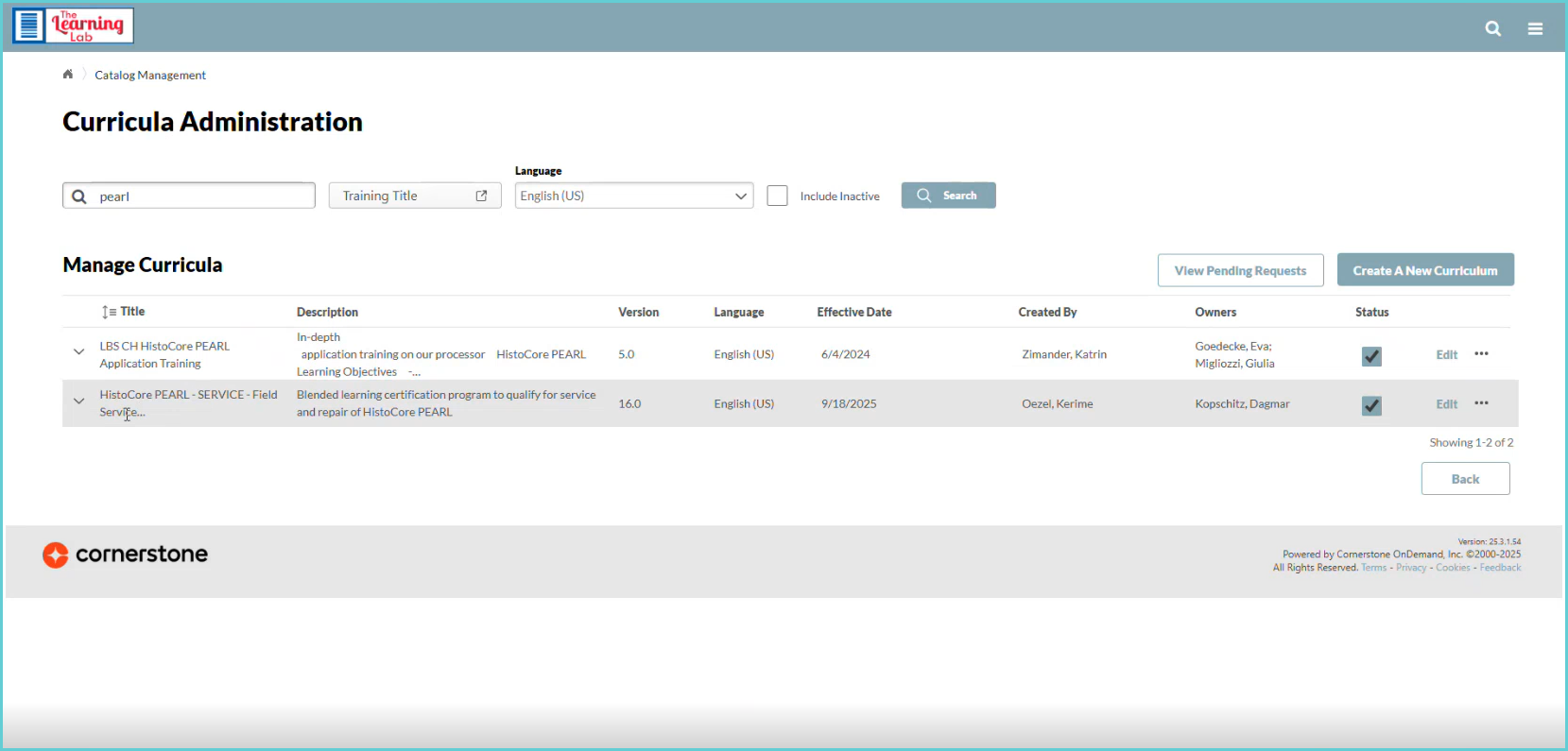
However, there are still issues that can arise and keep a user from being able to generate one, such as the user not having the latest, more up-to-date version of the curriculum. Support specialists can confirm this by comparing the version listed in the training details of the curricula assigned to the user to what is found within the Admin Catalog, as seen in the screenshot below.
Other issues that may arise are a user having multiple accounts, and they may have possibly completed the wrong version under the wrong account. Though this is rare, it is still very important that we confirm the user only has one active account.
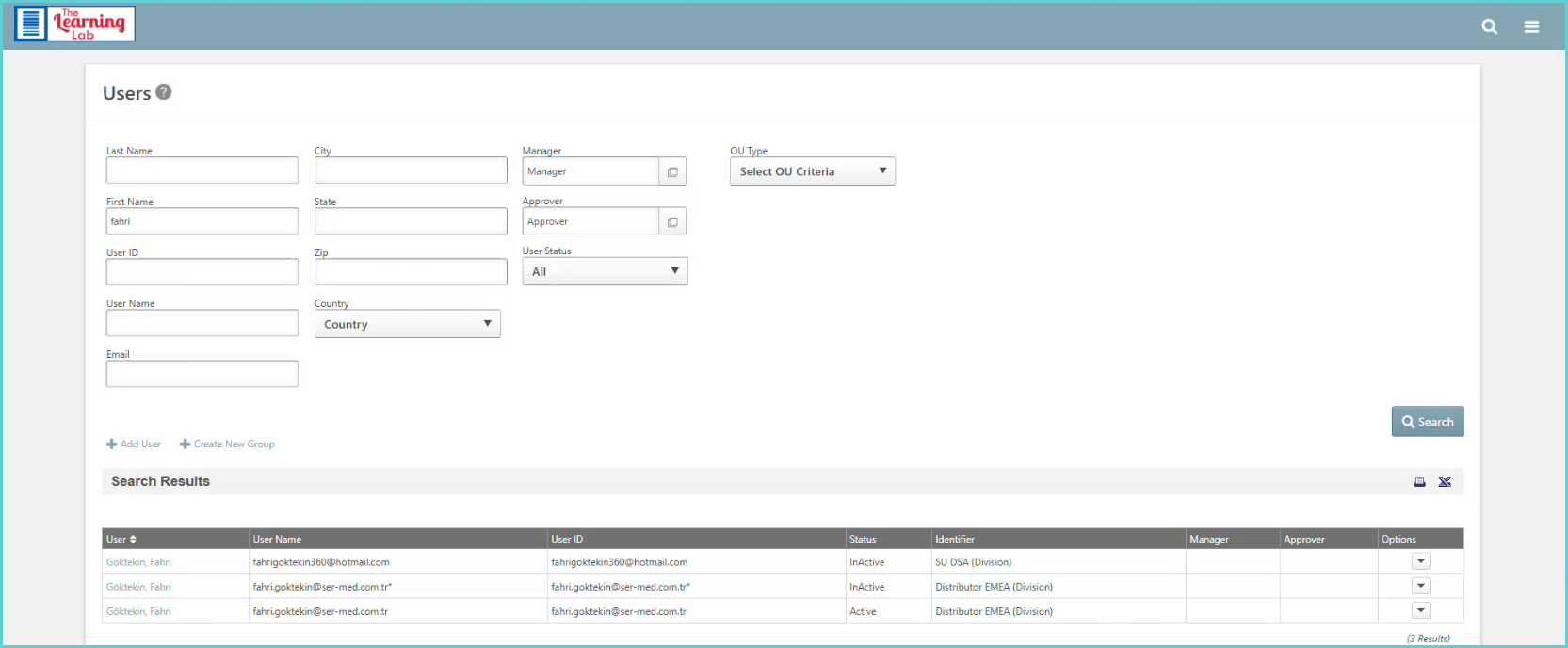
There is also the chance that the user does have one account, but it was recently reactivated, but it hasn't been reactivated long enough.
How to Direct Service Key Issues
When a user complains that the service key is not working, follow the chart below to direct the ticket.
| User Complaint | What To Do | How to Direct the Ticket | |||||||||
“I’ve completed all my training and cannot generate a service key.” “I cannot generate a key.” | Check the Active transcript for the product.
| After you have confirmed the user has completed all assigned training, email histosupport@leicabiosystems.com, cc tll.global@leicabiosystems.com, and explain the issue. Request a key for the user until the issue is resolved. COPY the following addresses based on the product line: PELORIS / HistoCore PELORIS – TLL Global Team tll.global@leicabiosystems.com All BOND products – TLL Global Team tll.global@leicabiosystems.com *CoreHisto products that require a service key are listed below. | |||||||||
| “I have completed training for (x product), but it’s not showing up in my service key list.” | Check the Active and Completed transcripts for the product.
| Direct the ticket to tll.global@leicabiosystems.com. |
| *CoreHisto Products That Require Service Keys |
• HistoCore CHROMAX ST • HistoCore CHROMAX CV • HISTOCORE SPIRIT ST • HISTOCORE SPRING ST • HistoCore LIGHTNING S • HISTOCORE PEARL • HISTOCORE PEGASUS • HistoCore PEGASUS PLUS • SPECTRA CV • SPECTRA ST |
| Standard Response: |
